New to DJing or to A/B TEKNIQ? Follow these ten steps in order. Each one says what to press and what you should see, and points to the article that goes deeper. A pop-up offers this guide when the app opens, until you tick Do not show this again; you can always open it again here in Help.
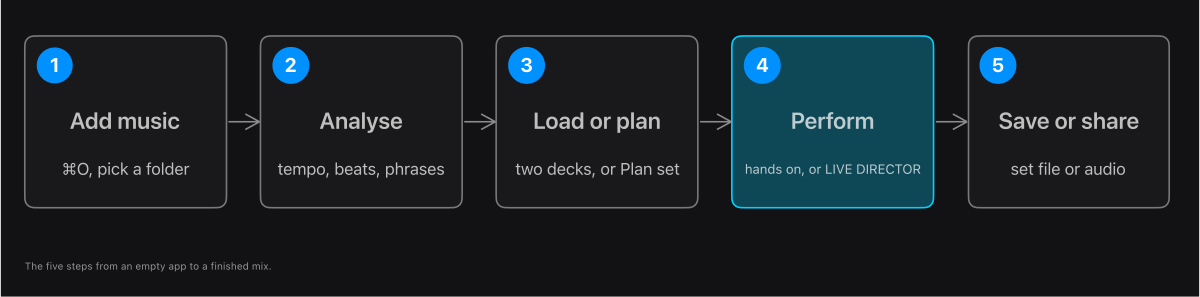
- Add your music. Press ⌘O (or Load Tracks on Home) and choose the folder that holds your tracks. The tracks appear in the Library. The app only reads your files: it never changes or deletes them.
- Analyse the tracks. Press Analyse in the Library header. The app finds each track's tempo, beats and sections (intro, build, drop, breakdown). Do it while no deck is playing. A green Analysed mark means a track is ready.
- Check the tempos. If a track shows a tempo that looks wrong (a 135 BPM techno track at 180, say), open its playlist's Tempo menu, choose the range the tracks should be in, and press Re-analyse. See How tracks are analysed.
- Tidy the library. Make playlists for your styles (New, then Playlist). The Filter menu can hide duplicate tracks. To stop using a whole folder, right-click it under Source Folders and choose Remove source folder: its tracks leave the library, your playlists and your Sets, and your files stay where they are.
- Put a track on each deck. In the Library, select a track and press Load A or Load B, or drag it onto a deck on the Performance screen.
- Play and line up the beats. Press PLAY on one deck. When the other is playing too, press S (SYNC) so it follows the first deck's tempo and beat. Press Q to make cues, loops and jumps wait for the beat. See Sync and beat matching.
- Mix by hand. Start the second track on a phrase (every 8 bars something changes), bring up its level, and swap the bass: take the first track's low knob down as the second one's comes up. Move the crossfader across, then take the first track out.
- Let the Director plan it. In the Transition Lab press Plan mix, then Audition mix to hear it. For a whole set, put tracks in a Set (or open a playlist), open SET DIRECTOR and press Plan set, then Audition set. Rate each mix good or not good so the Director learns what you like.
- Read the flags. A mix marked NO SAFE MIX means the Director could not find a clean transition for that pair. It plans a plain crossfade instead (or loops the leaving track out when the tempos are too far apart), so you can listen and change it.
- Save and share. Share a mix or a whole set as one audio file. If you get stuck, Troubleshooting has the common problems.
Tip. You never have to use every feature. Many DJs only use the Library, the two decks and SYNC. The Director, cues, loops and the AI Assistant are there when you want them.
In the app: Start: add music