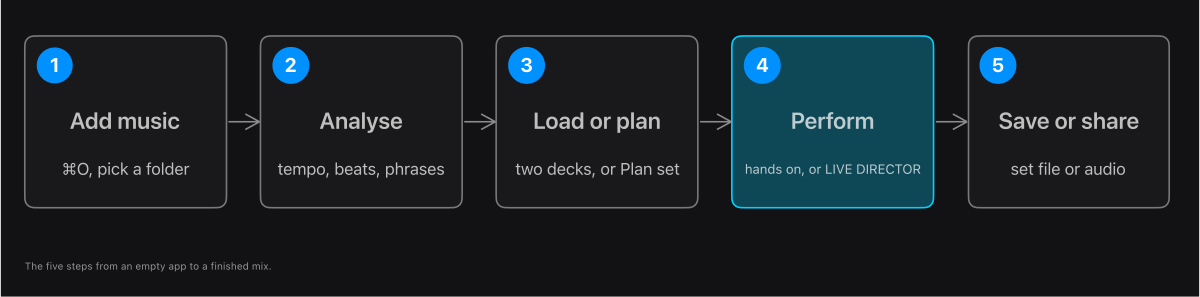
Add your music
Press ⌘O (or Load Tracks on Home) and choose the folder that holds your tracks. The tracks appear in the Library. The app only reads your files: it never changes or deletes them.
Read the matching Help article →Analyse the tracks
Press Analyse in the Library header. The app finds each track's tempo, beats and sections (intro, build, drop, breakdown). Do it while no deck is playing. A green Analysed mark means a track is ready.
Read the matching Help article →Check the tempos
If a track shows a tempo that looks wrong (a 135 BPM techno track at 180, say), open its playlist's Tempo menu, choose the range the tracks should be in, and press Re-analyse. See How tracks are analysed.
Read the matching Help article →Tidy the library
Make playlists for your styles (New, then Playlist). The Filter menu can hide duplicate tracks. To stop using a whole folder, right-click it under Source Folders and choose Remove source folder: its tracks leave the library, your playlists and your Sets, and your files stay where they are.
Read the matching Help article →Put a track on each deck
In the Library, select a track and press Load A or Load B, or drag it onto a deck on the Performance screen.
Read the matching Help article →Play and line up the beats
Press PLAY on one deck. When the other is playing too, press S (SYNC) so it follows the first deck's tempo and beat. Press Q to make cues, loops and jumps wait for the beat. See Sync and beat matching.
Read the matching Help article →Mix by hand
Start the second track on a phrase (every 8 bars something changes), bring up its level, and swap the bass: take the first track's low knob down as the second one's comes up. Move the crossfader across, then take the first track out.
Read the matching Help article →Let the Director plan it
In the Transition Lab press Plan mix, then Audition mix to hear it. For a whole set, put tracks in a Set (or open a playlist), open SET DIRECTOR and press Plan set, then Audition set. Rate each mix good or not good so the Director learns what you like.
Read the matching Help article →Read the flags
A mix marked NO SAFE MIX means the Director could not find a clean transition for that pair. It plans a plain crossfade instead (or loops the leaving track out when the tempos are too far apart), so you can listen and change it.
Read the matching Help article →Save and share
Share a mix or a whole set as one audio file. If you get stuck, Troubleshooting has the common problems.
Read the matching Help article →