Open the side panel with the button at the top left of the window. Home is the first item.
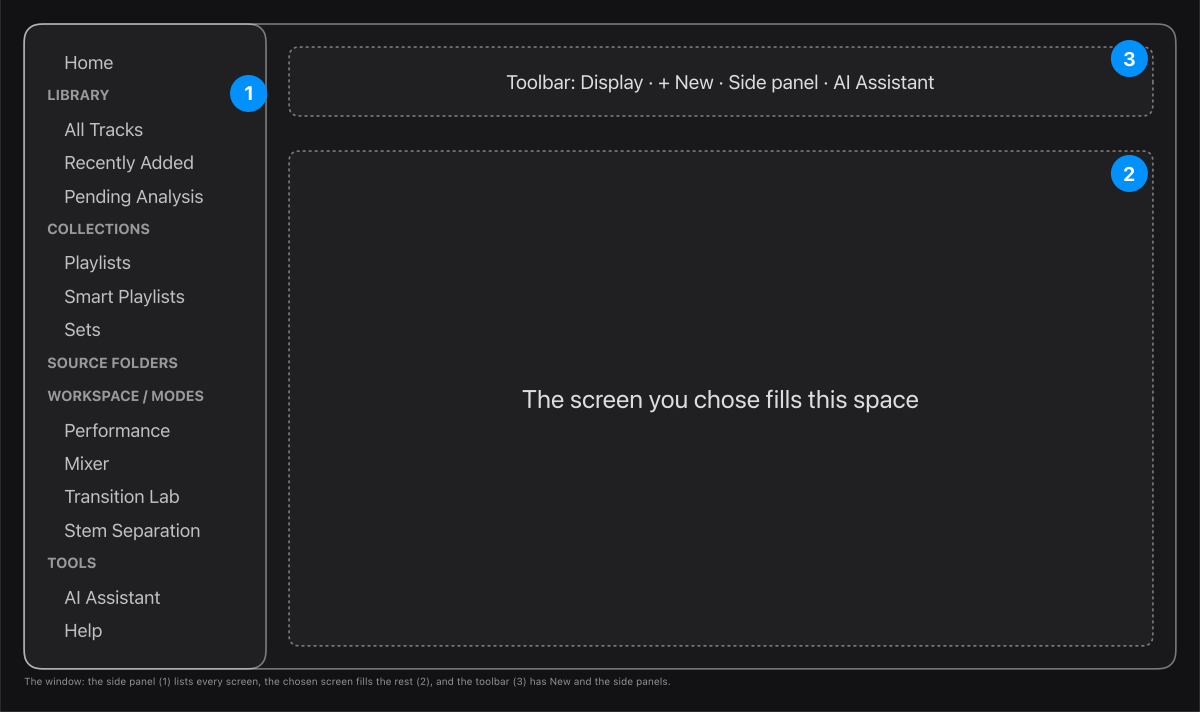
- The side panel: your tracks, playlists, sets and source folders, then the screens.
- The screen you chose fills the rest of the window.
- The toolbar: Display, New (playlist or set), the side panels and the assistant.
The screens, one by one:
- Library: your tracks, playlists, smart playlists and sets, with the LIVE DIRECTOR's tools above the list.
- Performance: both decks, the mixer and your library together.
- Mixer: the mixer face at full size, and the mixer model.
- Transition Lab: plan, shape and replay a mix between two tracks.
- Stem Separation: split tracks into parts such as drums, bass and vocals.
- AI Assistant: review cue estimates, find compatible tracks and draft a set.
The shortcuts ⌘1 to ⌘4 jump to the first four.